Introduction to NVivo
When you launch NVivo for the first time, you will be prompted to set up your user profile. To do this, enter your name or ID and initials, select a language, then press ‘OK’. Once you have done this, you can start exploring the NVivo sample projects and workspace, as explained on this page.
In brief, it covers the following:
- The different NVivo sample projects available for you to explore
- The key components of the NVivo workspace
- NVivo’s folder structure for organising, storing and summarising project materials
- How to use the sample project to explore coding and query ideas
NVivo sample projects
NVivo comes with five different sample projects that you can explore and experiment with before starting your own project. Links to two of these projects are displayed at the top of the screen when you launch NVivo, and you can also click the provided link to read about and download any of the others, including a sample literature review project.
For parts of this module, we will work with materials from the first sample project (the multi-method project), called Environmental Change Down East. Select this project to open it now, or choose a different project if you prefer.
When you open a new project, you will have the option to take a tour of the software. For now, click ‘Skip tour’. If you would like to take the tour later, go to: File > Help > Help Resources > Tour
The NVivo workspace
Once the sample project has opened, you can explore the NVivo workspace. For example, you may wish to double click on the Overview of Sample Project document (or a similar document) to open it and read about the sample project. When you do this, you will see three different views, as described and shown below:
- The Navigation View on the left of the screen displays groups and folders. For example, there is a ‘Data’ group containing the Files, File Classifications and Externals folders, which are explained in the next section. Within these folders are sub-folders containing the data for the sample project.
- The List View in the middle of the screen lists the contents of the folder selected in the Navigation View. For example, when the Files folder is selected, the List View of the Environmental Change Down East sample project shows the Overview of Sample Project document. This is the only document in the parent Files folder, as the other documents have been organised into sub-folders.
- The Details View on the right of screen displays open project items. For example, it displays the Overview of Sample Project document that you opened previously.
Close the Overview of Sample Project document when you are finished with it. You can have multiple windows open in the Details View, but it is generally best to keep these to a minimum to avoid confusion.
Organising project materials
The ‘Data’ group in the Navigation View contains three folders where all of the project materials are stored. These folders are explained below, and you are encouraged to explore each one to see what has been included in the sample project:
- Files is where you can import or create materials for your project and organise them into sub-folders as needed. This is the folder you will use for your project materials most, if not all, of the time.
- File Classifications is where you can summarise general information about the materials in your project using classifications. You can use predefined classifications or ones you have created or imported (for more on classifications, see the Classifications page of this module). Using classifications is optional.
- Externals is where you can summarise materials that you cannot import into your project, such as physical books. You may not need to use this folder.
When importing materials into NVivo, you can create your own folders and sub-folders based on how you want to organise your data. For example, in the Environmental Change Down East sample project, the following folders and sub-folders have been used to organise the project materials in the Files folder:
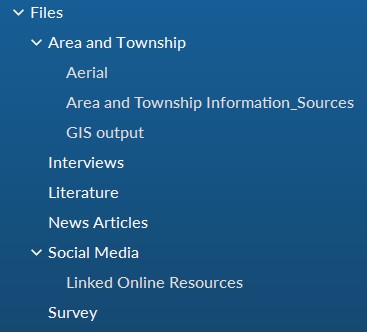
By exploring the folders in the sample project (which you can do by clicking the relevant ‘>’ icons), you can see the different types of materials that can be imported into NVivo. These range from text documents and PDFs to images, audio files, video files, social media content and survey data.
Codes and queries
If you are unsure where to start with coding, the NVivo sample projects are a good place to get ideas and inspiration. For example, the Environmental Change Down East sample project contains a range of different codes in the Codes folder of the ‘Coding’ group. These include codes for themes in the project, such as Economy, Infrastructure and Natural environment, along with related sub-codes. There are also codes for different attitudes (Mixed, Negative, Neutral and Positive) and a Memorable quotes code.
Some of the content in the sample project has been coded to more than one place. This can be used to identify patterns in the data and create sub-codes using queries. The sample project also provides examples of different types of queries, which can give you ideas for the kinds of queries you might run in your own project.