
Using-the-Library-catalogue-printable-guide-UniSkills.pdf
Using the Library catalogue
Table of Contents
Introduction
This guide is designed to help you use the Curtin Library catalogue for your study and research.
To access online resources and additional features in the catalogue, it is recommended that you log in using your Curtin ID and password. You can do this by selecting LOG IN from the top right corner of the catalogue screen.
What you will learn
- Tips for searching in the Library catalogue and accessing online resources
- How to request items from the collection
- Check your borrower information
- Save searches and item records in My Favourites
- Troubleshoot common issues.
Search the catalogue
You can search Curtin Library for books, journal articles, conference papers, videos, theses and many other useful resources. Use the search box on the Library homepage or select the magnifying glass icon to access more functionality.
Search for specific items
When you know the details of a resource such as the title or you want to look for works by a particular author, enter the title (e.g. Binan Goonj) or author’s name (e.g. Stan Grant) into the search box and click the search (magnifying glass) button.
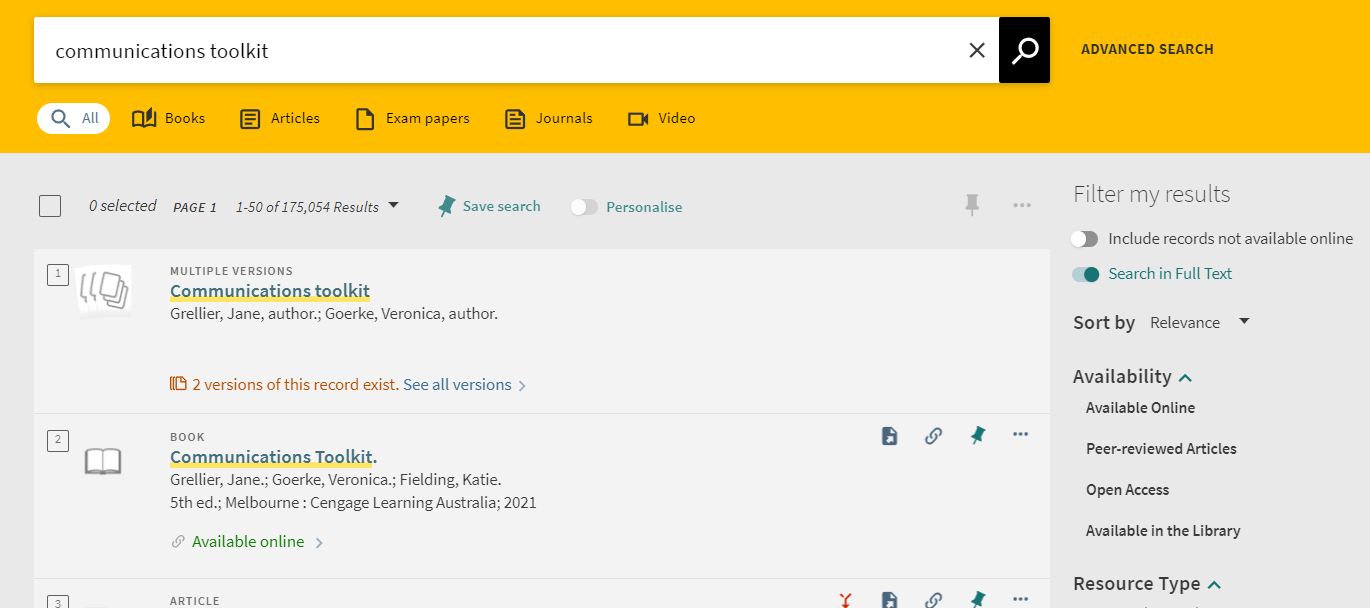
Search tip: If the title of the item is broad, add the author’s family name to the search, e.g. Managerial accounting Hilton </div>
Search for a topic
If you are researching a topic, enter broad keywords from the topic into the search box and click the search (magnifying glass) button.
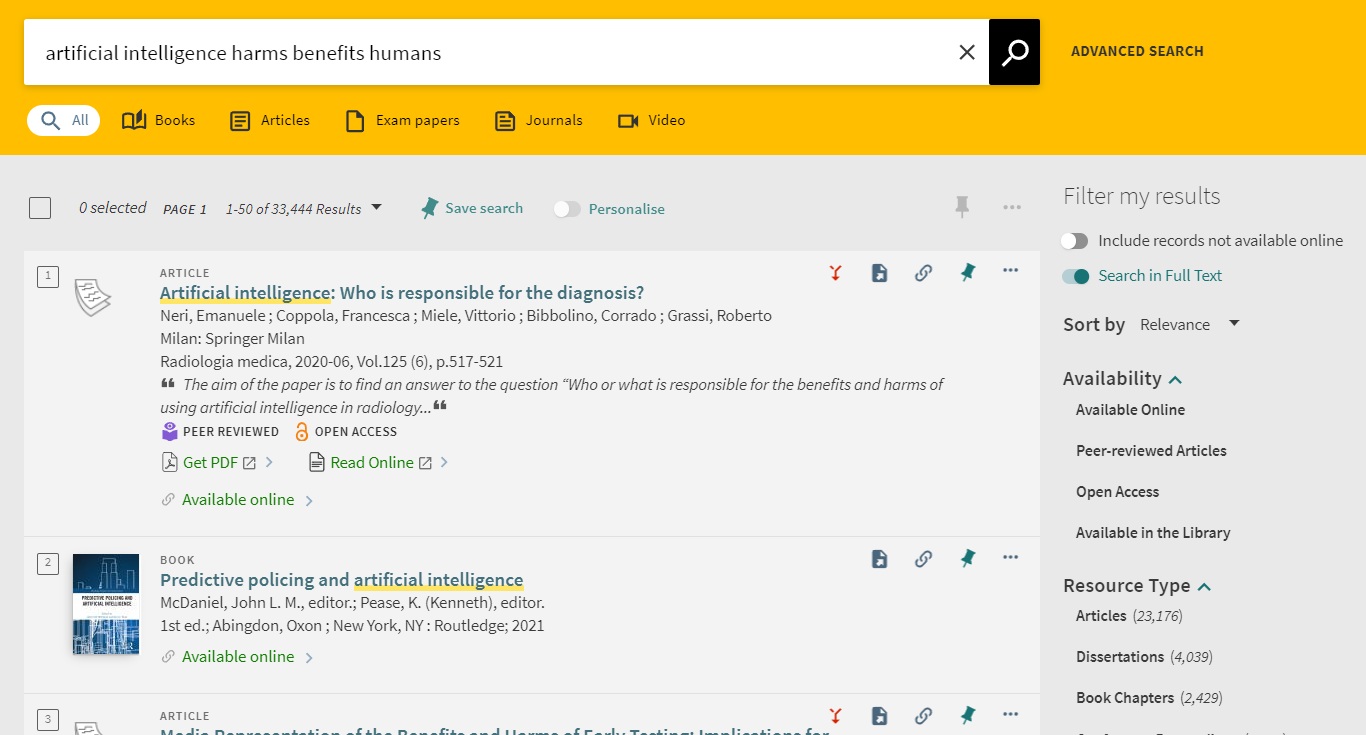
Filter results
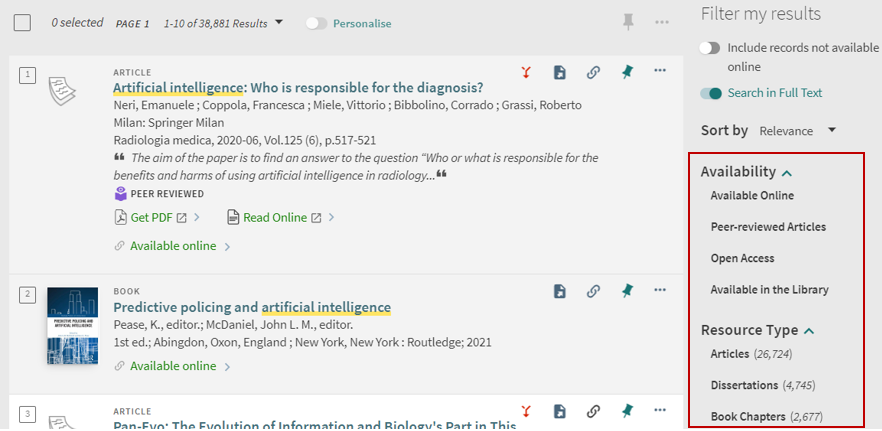
Your initial search results list may be quite large. Use the filters on the right side of the search results page to narrow your search. Some useful filters include:
- Available Online (under Availability) limits results to items which are available electronically
- Peer-reviewed Articles (under Availability) limits to articles from peer-reviewed journals
- Resource Type allows you to limit to particular types of materials (e.g. articles, books, newspapers, videos)
- Creation Date allows you to refine your search results to a particular date range.
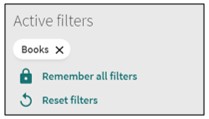
You can retain your selected filters for more searches. Select Remember all filters or click the left side of an individual filter and a padlock icon will appear. To remove the filter, click on the padlock or select Reset filters. This function can be applied to multiple filters but will only last for the current session.
Access resources
Many of the Library’s resources can be accessed online. Click on the Available Online link or the item title to open the full item record, then click on the database link(s) under Availability to open the item. If you have previously logged in, it will open to the resource directly.
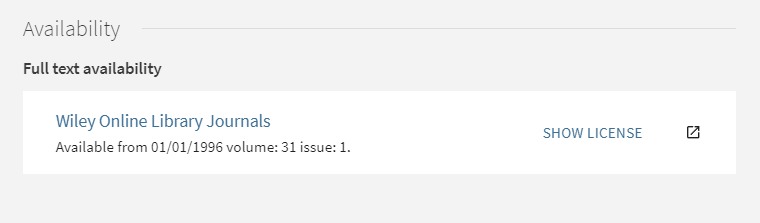
Physical items that are in the Library collection will include the details of the campus library and location. See Request items for information on accessing these resources.
Boolean search (AND / OR)
You can combine search terms in the catalogue by entering Boolean operators (AND, OR) in capital letters between the terms.
- AND narrows your search, returning results that contain both of your terms, e.g. climate change AND industrial nations
- OR broadens your search, returning results that contain either of your terms, e.g. climate change OR global warming

See our Finding information module for more tips on constructing an effective search strategy.
</div>
Advanced search
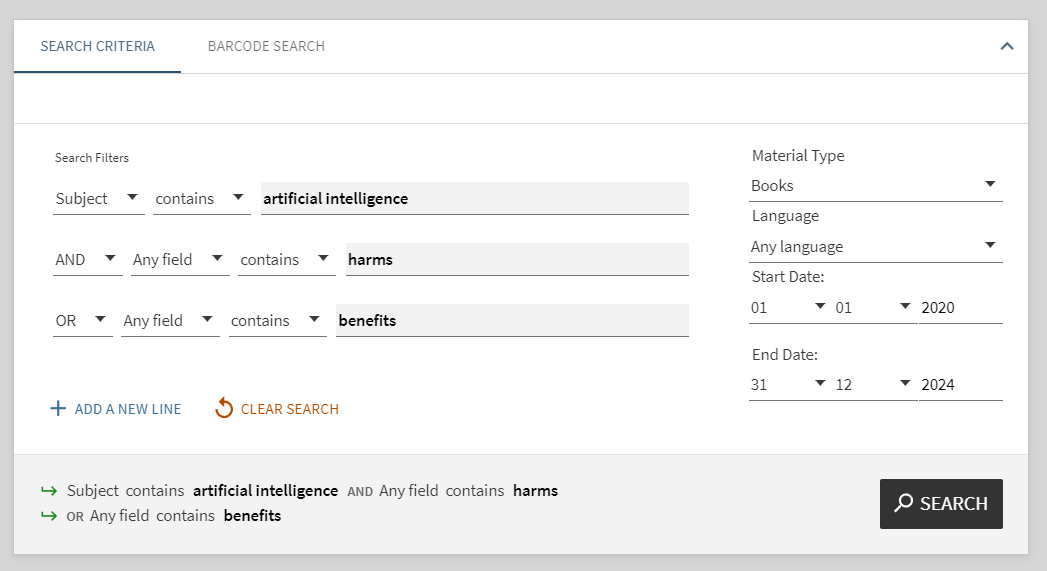
Advanced search allows you to create a more targeted search. To access, click on the Advanced Search link next to the search box in the catalogue.
Advanced search allows you to specify the fields in the item record where you would like to search for your terms: Any field, Title, Author/Creator or Subject. You can also specify:
- contains for a keyword search
- contains exact phrase when you are searching for an exact phrase match
- starts with when you know the exact title
You can further limit your search by Material Type, Publication date and Language.
You can combine your search terms with Boolean operators (AND, OR) by typing into the search boxes or selecting from the dropdown options.
Request items
Request an item from Curtin Library
You can borrow an unlimited number of items from our collection. Loans are usually of an unlimited length with no need to renew or return by a set date unless we contact you by email. Some of our items have different rules around requesting and pickup:
| Status | Physical location | How to access |
|---|---|---|
| Available on Request | Located in compactus | Must be requested for pickup via the catalogue |
| Yellow | Located in High Demand Yellow tape on spine |
Can be requested for pickup via the catalogue or you can pick this up from the shelf yourself |
| Red (4 hour loan) | Located in High Demand Red tape on spine |
Must be picked up from the shelf yourself |
To place a request for a physical item:
- Log in to the catalogue using your Curtin ID and password (top right-hand corner)
- Search the catalogue to find the item
- Select Request under the Check Availability tab of the item
- Select your preferred Pickup Location from the drop-down menu
- Click Request.
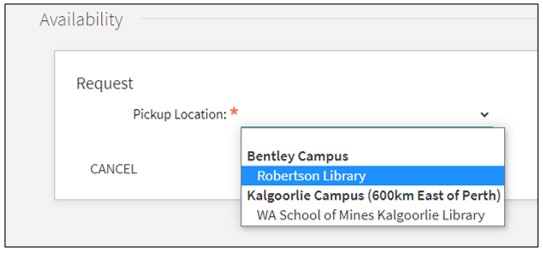
The Library will transfer the item to your pickup location and put it on hold for you. You will be sent an email notification when the item is available for collection.
The WA School of Mines Kalgoorlie Library collection can also be browsed in-person. To access items located in the John Curtin Prime Ministerial Library contact: jcpml@curtin.edu.au.
Item not held by Curtin Library? Curtin students and staff can recommend study and research materials for the library collection via our recommend an item form.
</div>
Request items from other libraries
Curtin staff and postgraduate students can request items from other libraries using the Document Delivery Service.
Ensure you are logged in and perform your search. Under Filter my results on the search results screen, tick Include records not available online to display items available from other libraries.
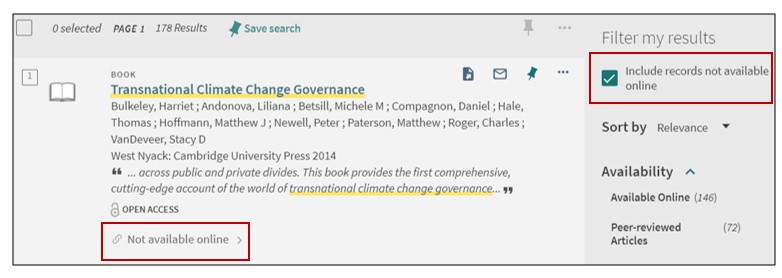
Items not held by Curtin will be included in the results list with a status of Not available online. To place a request, click on the item title and in the Availability section select Request through Document Delivery Service.
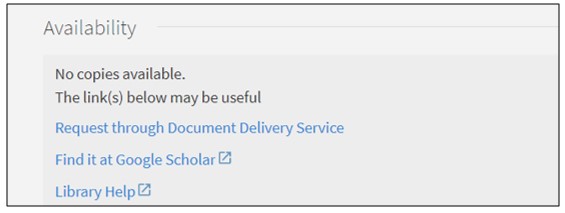
Complete the pre-populated form to submit the request.
Borrower Information & My favourites
My Borrower Information
Borrower information allows you to:
- view your current or previous loans
- check or cancel your current requests
- see if you have any outstanding fines
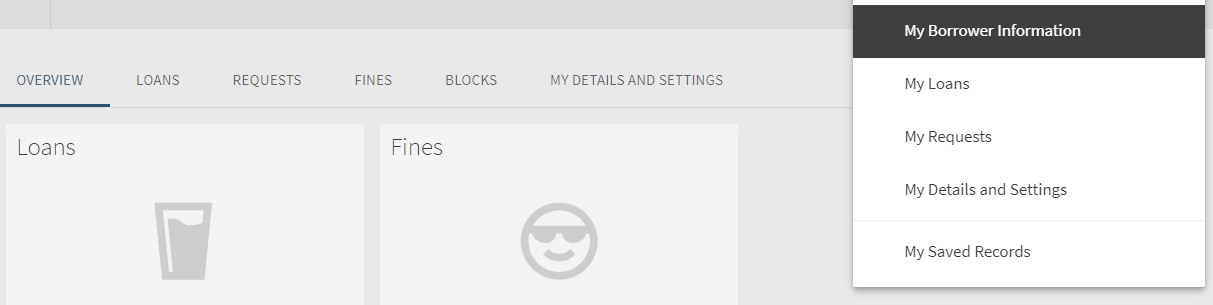
To access, log in to the Library Catalogue (top right corner), click on your name and then select My Borrower Information from the drop down menu.
Save item records and searches
My Favourites allows you to:
- save the records of items you find in the catalogue
- save your searches
- set up alerts to notify you when new items of interest are added to the catalogue.
To save content to My Favourites, ensure you are logged in to the catalogue (top right corner).
Save item records and searches
To save records of individual items you have found in your search, click the pin icon that appears in the item record

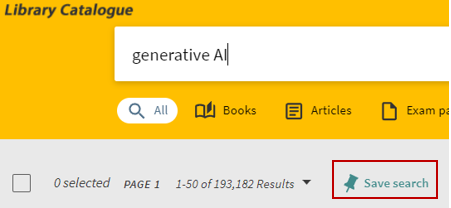
To save your search, click Save search under the search box on the search results page.
Access My Favourites
To open My Favourites, click on the pin icon that appears in the top toolbar (it will appear next to your name when you are logged in).

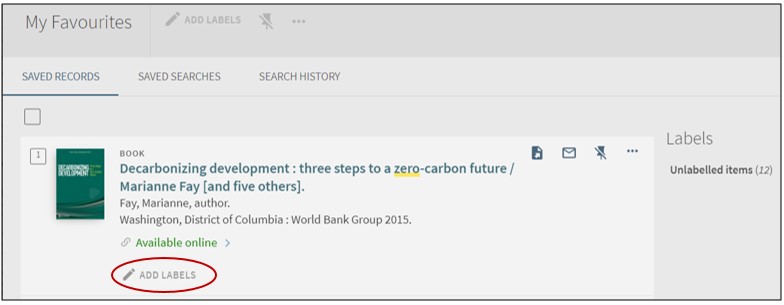
My Favourites will open to SAVED RECORDS. From this page you can group and label your saved records:
- Select several records and choose Add Labels to assign a group name or apply a label to an individual record.
- To remove, click on the pencil icon and delete.
You can also use the other icons to email and print records as well as send records to EndNote.
Go to your SAVED SEARCHES and select the bell icon to set an alert. Notifications will be sent to the email address displayed.
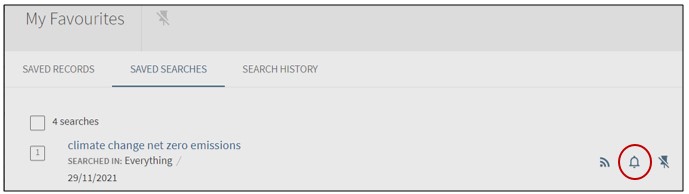
Your SEARCH HISTORY contains searches made during your current session. To permanently save a search, click the pin icon.
Troubleshoot issues
Browser issues Temporary errors in the browser may prevent you from accessing resources. If an online resource won’t open in the browser you are using, try accessing the catalogue in a different browser (e.g. Chrome, Firefox, Edge). It is also useful to clear your browser cache so you don’t continue to receive the same error.
Common issues with the catalogue
The journal article is listed as available online but the link isn’t working
-
Article-level linking not available - Sometimes the link will not take you directly to the article but instead to the journal homepage. Search for the article title on the journal’s homepage or navigate to the required article by using the year, volume and issue information in the catalogue record. From the journal’s homepage select the option for past issues (called Archive, Previous issues or similar), then select the year, volume and issue. You will see the article you want presented in the list.
-
Linking to supplementary content - Some supplementary content in journals, such as conference abstracts or posters, may be included in single document which prevents linking to the individual item and results in an error message. Navigate to the required article by using the year, volume and issue information in the catalogue record. From the journal’s homepage select the option for past issues (called Archive, Previous issues or similar), then select the year, volume and issue.
-
Article outside of our subscription - Some journals only have selected full text articles available or have an embargo on article access (time period where access is restricted). If this is the case, it will be indicated in the Availability section of the item record, e.g. Selected full text only, Selected free text access, Most recent 6 month(s) not available.
-
Check Google Scholar - If there is an issue with the catalogue link, you may be able to source a copy of the article via Google Scholar. Login to Google Scholar from the Library’s database page otherwise you may be prompted to pay for access.
I am unable to request items
Your request may be unsuccessful if you have already placed a request on another copy of the item; a copy of the same item is already on loan to you; or your borrowing privileges have been suspended.
Requesting is only available to students and staff with local (Australian) addresses. You can update your address details via eStudent in OASIS (see How do I update my address details for instructions). Once your details have been updated, you will be able to request items.
I am getting a message saying I am not authorised to access content
Access to library resources is determined by your enrolment status. If you have recently completed your course, graduated, are no longer studying or you haven’t re-enrolled, you will not be eligible to access our online resources. If you are currently enrolled and receiving this message, please contact Library help for assistance.
Curtin College, UniReady and registered Alumni have access to a limited selection of online resources. If you try to access something outside of this, you will receive an error message. Please refer to your Borrowing and membership entitlements on the library website.
I can’t open an ebook or it only gives me 5 minutes reading time
Some ebooks only have a certain number of licences available which determines how many users can access the ebook at a time (e.g. 3 users). If all licences are in use, you may find the ebook can’t be opened or only allows you five minutes for reading and you will need to try and access the ebook at a later time. If there is a limit on the number of licences available, this will usually be displayed under the Availability section in the catalogue record or within the database.
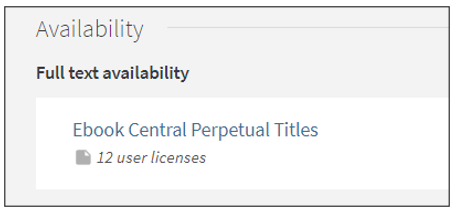
If the ebook has unlimited user licences and you are unable to open or use it, please contact Library help for assistance.
I can’t find an exam paper for my unit
Past exam papers, that have been approved for publication, are available in the Reading List for your unit.
The Library only holds exam papers that have been released for publication by the relevant Faculty. If you require additional information or specific exam materials, it is recommended you check Blackboard or get in touch with your Unit Coordinator for further guidance and support.
How can I access the full text when the espace record shows full text not available?
Item records from espace, Curtin’s institutional repository, may not have the full text included in the record. However, access may be available by clicking on View full record in espace under the Links section in the catalogue record, then selecting the DOI or URL. Alternatively, you can search for the article title in the Library Catalogue to see if the full text article is held in one of our subscribed databases.
I am searching for a Curtin honours thesis but cannot find it?
Curtin Library only collects PhD and Masters by Research theses not Curtin honours theses. Please contact the school or department the honours thesis was completed through to see if they can provide a copy.
Report a problem You can report problems with accessing online resources by clicking on Report a problem with this resource in the Links section of the full item record (note you must be logged in to the catalogue to see this). Library staff will then investigate your issue and respond via email.About UniSkills
UniSkills was created and is maintained by Curtin University Library. To report issues with UniSkills contact Library Help.
Twemoji icons by Twitter, Inc and other contributors, licensed under a CC-BY 4.0 licence.
Except where otherwise noted, UniSkills content in all it’s forms (website, PDFs etc) are licensed under a Creative Commons Attribution ShareAlike 4.0 International Licence. We ask that you attribute any use of the content as created by Curtin University Library with a link to the Library website.
This license does not extend to other Curtin University and Curtin University Library webpages, or to Curtin branding and trademarks. Curtin University’s copyright information is available on the Curtin website.