
Special-Collections-printable-guide-UniSkills.pdf
Special Collections
Table of Contents
Introduction
The Special Collections catalogue allows you to search across all of Curtin’s special collections for archival records, photographs, oral history interviews, objects and many other items. Use the search box on the Special Collections page, or choose Browse Special Collections to explore individual collections. Anyone can view Special Collections records, digitised content and images.
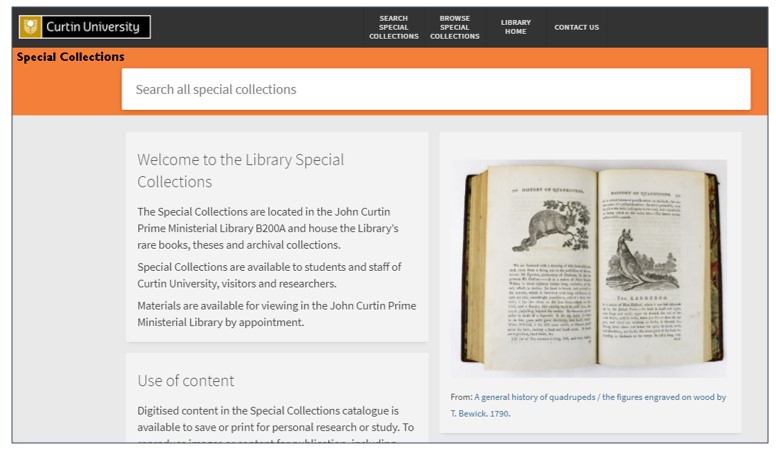
Search the Special Collections catalogue
To start searching the Special Collections catalogue, enter keywords or a phrase into the search box. By default, you will search all Special Collections but you can narrow your results using the filter options on the search results page, or select Browse Special Collections in the top toolbar to explore the contents of a specific collection.
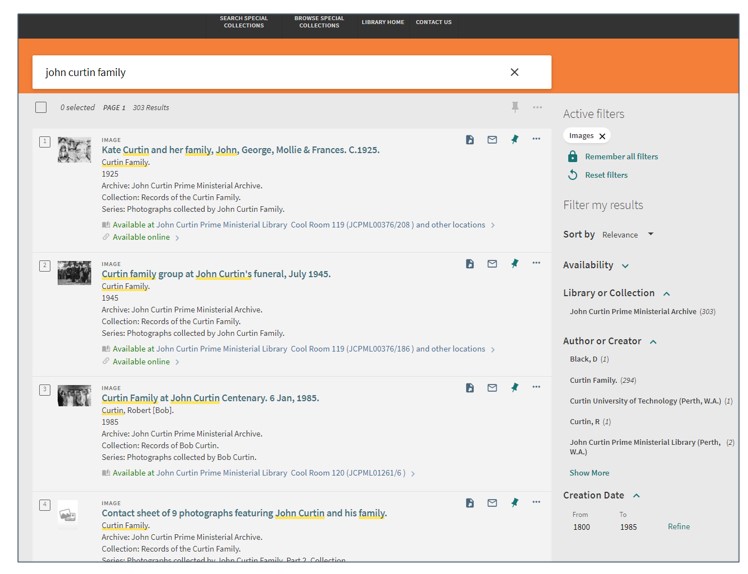
Search results
Your results will display as brief records which identifies the relevant collection, series, location and accession number of items, and links for online availability.
Filter results
You can refine your results using the Filter my results options. You can use filters to choose records from a specific collection, creator or resource type, and define the date range of the search results. You can also sort results by date (oldest or newest first), title or author. Selected filters will appear as Active filters and can be remembered or reset.
View full records and digital files
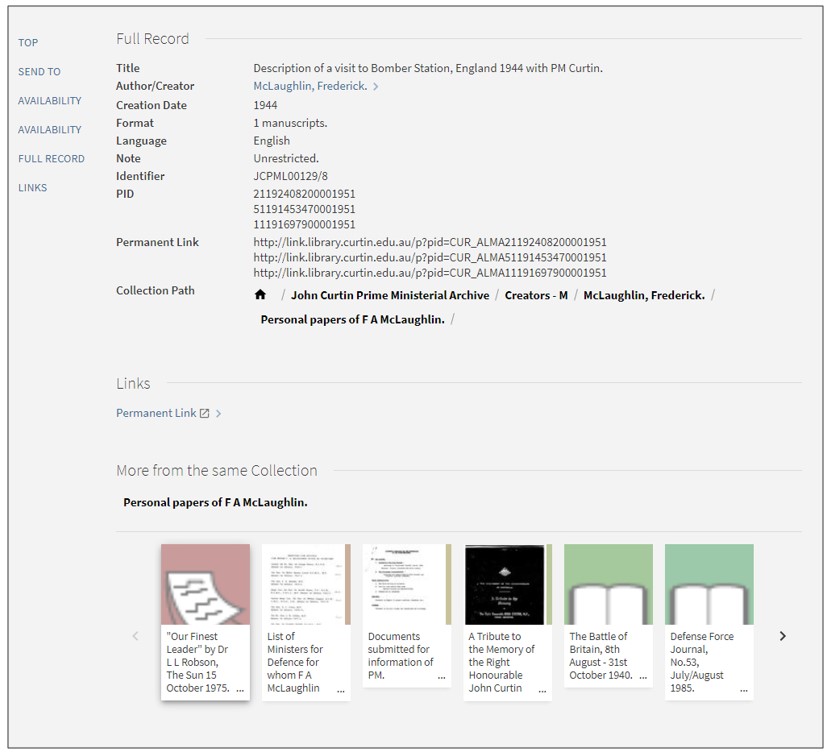
Click on the title in the brief record to open the Full Record. From here you can browse the hierarchy levels within the parent collection using the Collection Path. You can explore records at different levels, or see more records from the same collection.
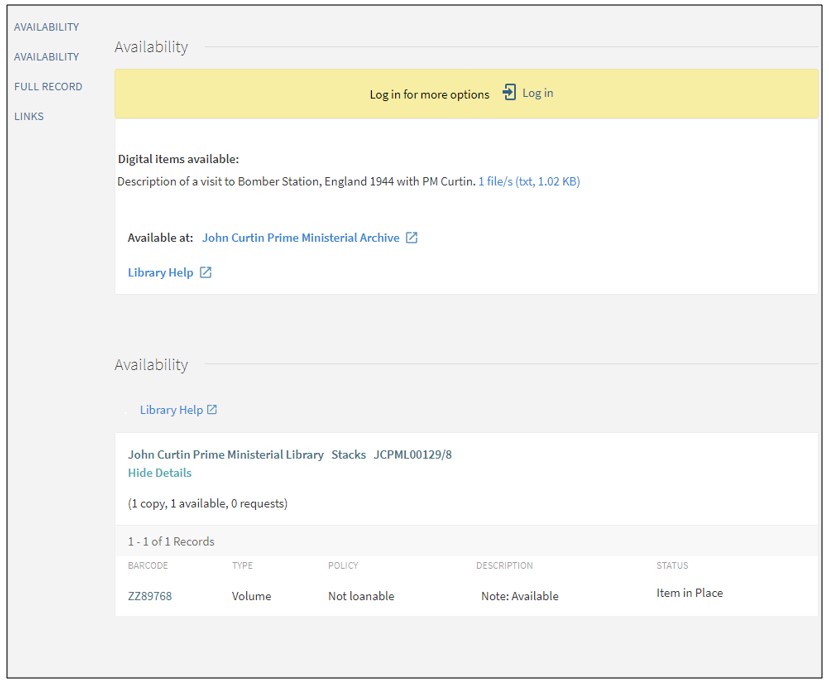
From the Availability window you can use the links to open any Digital files. Printed and handwritten records may have both an image of the original document, and a typescript or searchable text file, indicated as 1 file/s (txt, 1.09 KB)
Browse Special Collections
Choose the Browse option to see everything there is at each level of a Collection (i.e. John Curtin Prime Ministerial Archive). A collection may be comprised of one or more sub-collections; sub-collections are arranged according to the individuals or organisations who have created the material – the creators.
From the Browse Special Collections page choose a collection. Collections with a large number of sub-collections or creators can take a little while to fully load on the page.
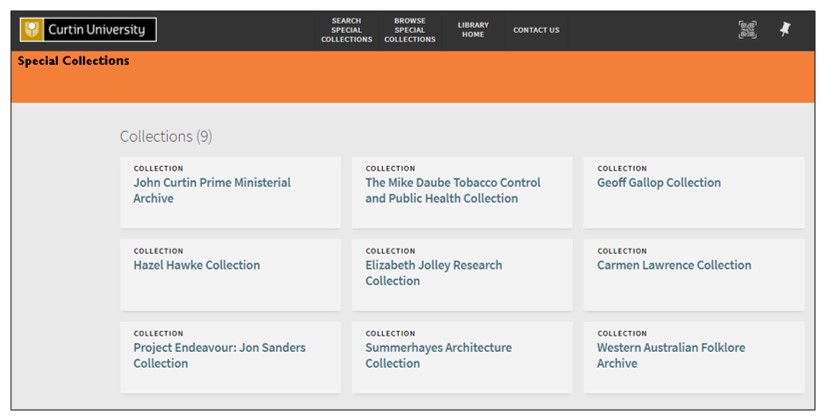
You can browse series or sub-collections, and the files and items in each file.
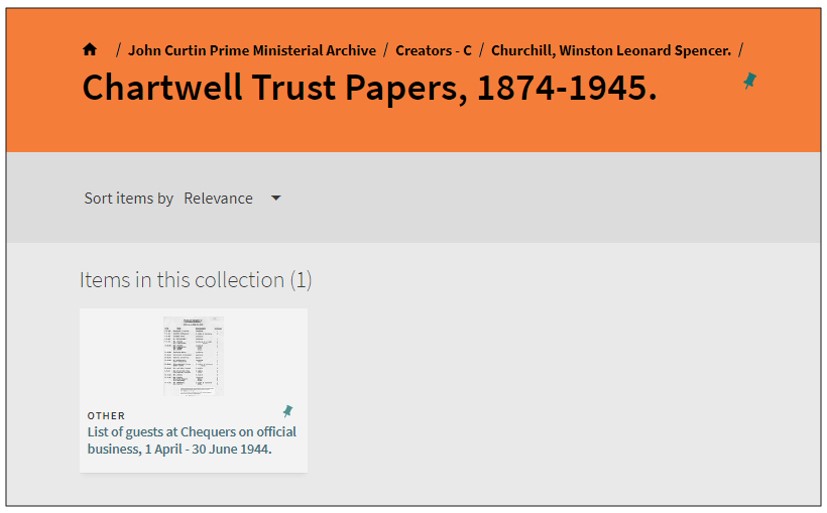
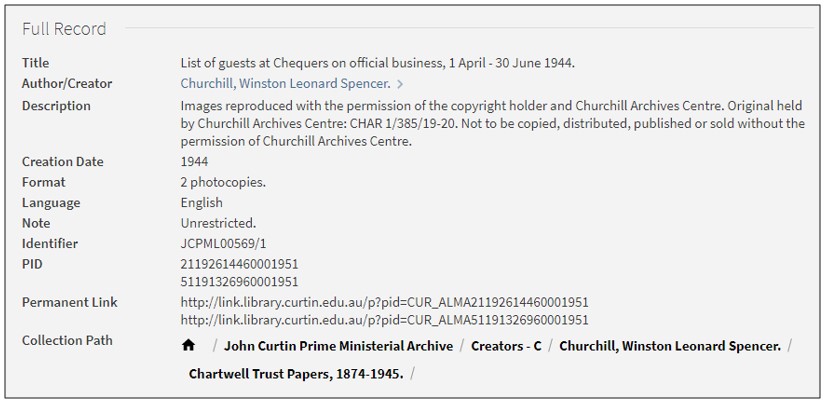
Opening a record will display the collection path which you can use to navigate the collection structure.
Using Special Collections material
Copyright, access and requesting items
Material in the Special Collections catalogue is made available by the Library for research and study. Special Collections content may be protected by Australian Copyright legislation and/or the copyright laws of other nations.
You can save or print digital images for your own research or study. For all other use of content from Special Collections, including photographic images, text, sound recordings, and to request copies for publication you will need to contact us. When submitting your request please provide the title and accession number of the records you are enquiring about. This will enable us locate copyright information and respond to your request sooner.
For more information about ordering images and copyright see Using images from our special collections.
Special Collection items are not for loan – you can use items in the JCPML Reading Room but need to make requests before visiting. Researchers are required to present ID before access will be permitted. See more about our Reading Room facilities.
Contact staff at the John Curtin Prime Ministerial Library.
Save results and searches
The catalogue allows all users to Print, Email, send records to EndNote and Export to Excel. Tick the boxes next to the item titles, then click the Show actions options icon (three dots) that appears at the top of the search results list and select the relevant option.
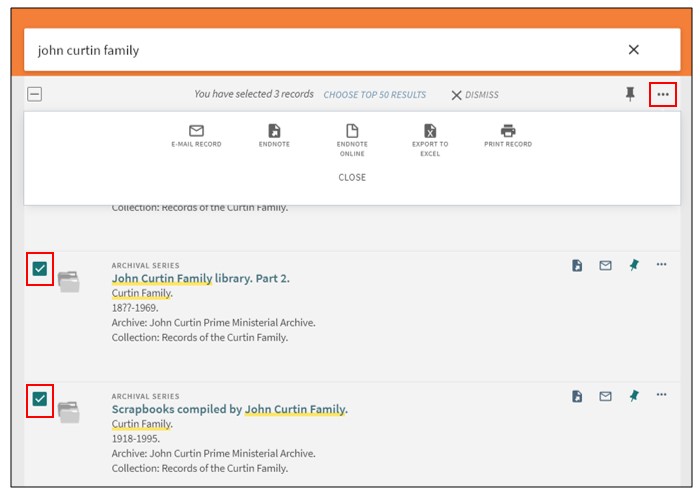
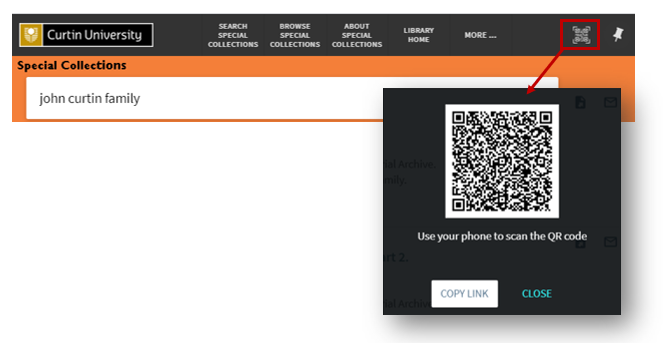
You can also save the search using the QR code in the top toolbar.
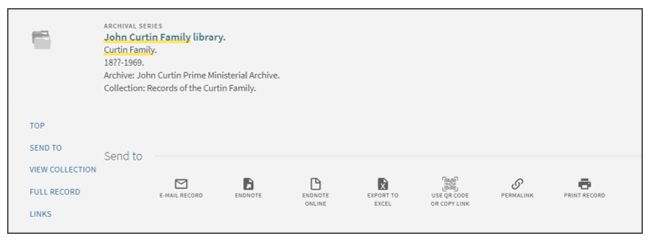
Individual records can be saved by opening the Full Record and selecting the options under Send to.
Save to My Favourites
Curtin staff and students also have to option to save records and searches to My Favourites. You need to log in to the catalogue to access this functionality. To do this click LOG IN in the top right corner of the catalogue and enter your Curtin ID and password.

Save item records
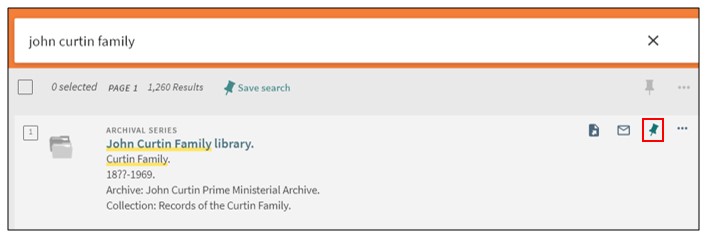
To save individual records to My Favourites click the pin icon in the item record.
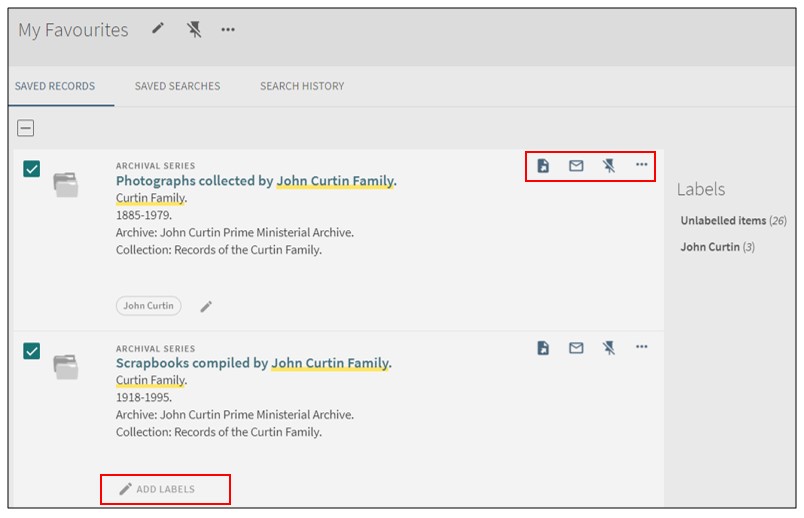
To access saved records, click on the pin icon that appears at the top of the page. My Favourites automatically displays the Saved Records.
- Click on a title for the full record
- Click on icons to select actions such as send to EndNote, email or print
- For individual, or a selection of records, click on Add Labels in Saved Records and assign a group name.
Save searches
To save the search select Save Search at the top of the search results list.
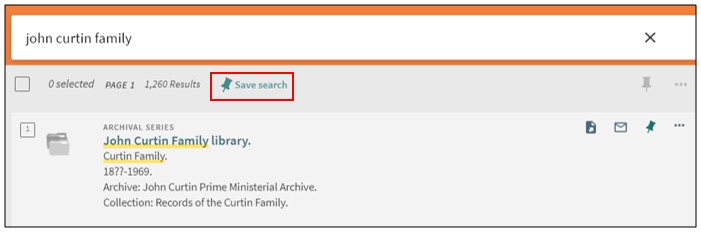
Click on the pin at the top of the page to go to My Favourites and select Saved Searches to access searches.
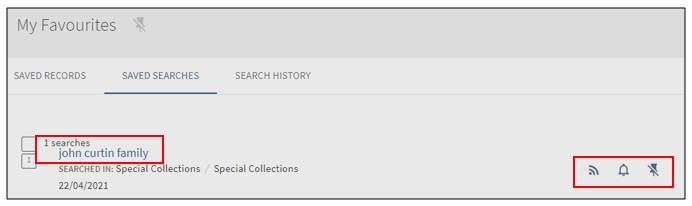
- Click on the search to rerun it in the catalogue
- Click the bell icon in to set up automatic notification of newly added catalogue records that fit search parameters. The notification is sent to the email address that appears at the top of the page. There is also the option to change the email address
- To delete saved individual searches, click on the crossed through pin
- The current search session is listed under Search History. Click on the pin to save permanently; the searches are then moved to Saved Searches.
About UniSkills
UniSkills was created and is maintained by Curtin University Library. To report issues with UniSkills contact Library Help.
Twemoji icons by Twitter, Inc and other contributors, licensed under a CC-BY 4.0 licence.
Except where otherwise noted, UniSkills content in all it’s forms (website, PDFs etc) are licensed under a Creative Commons Attribution ShareAlike 4.0 International Licence. We ask that you attribute any use of the content as created by Curtin University Library with a link to the Library website.
This license does not extend to other Curtin University and Curtin University Library webpages, or to Curtin branding and trademarks. Curtin University’s copyright information is available on the Curtin website.